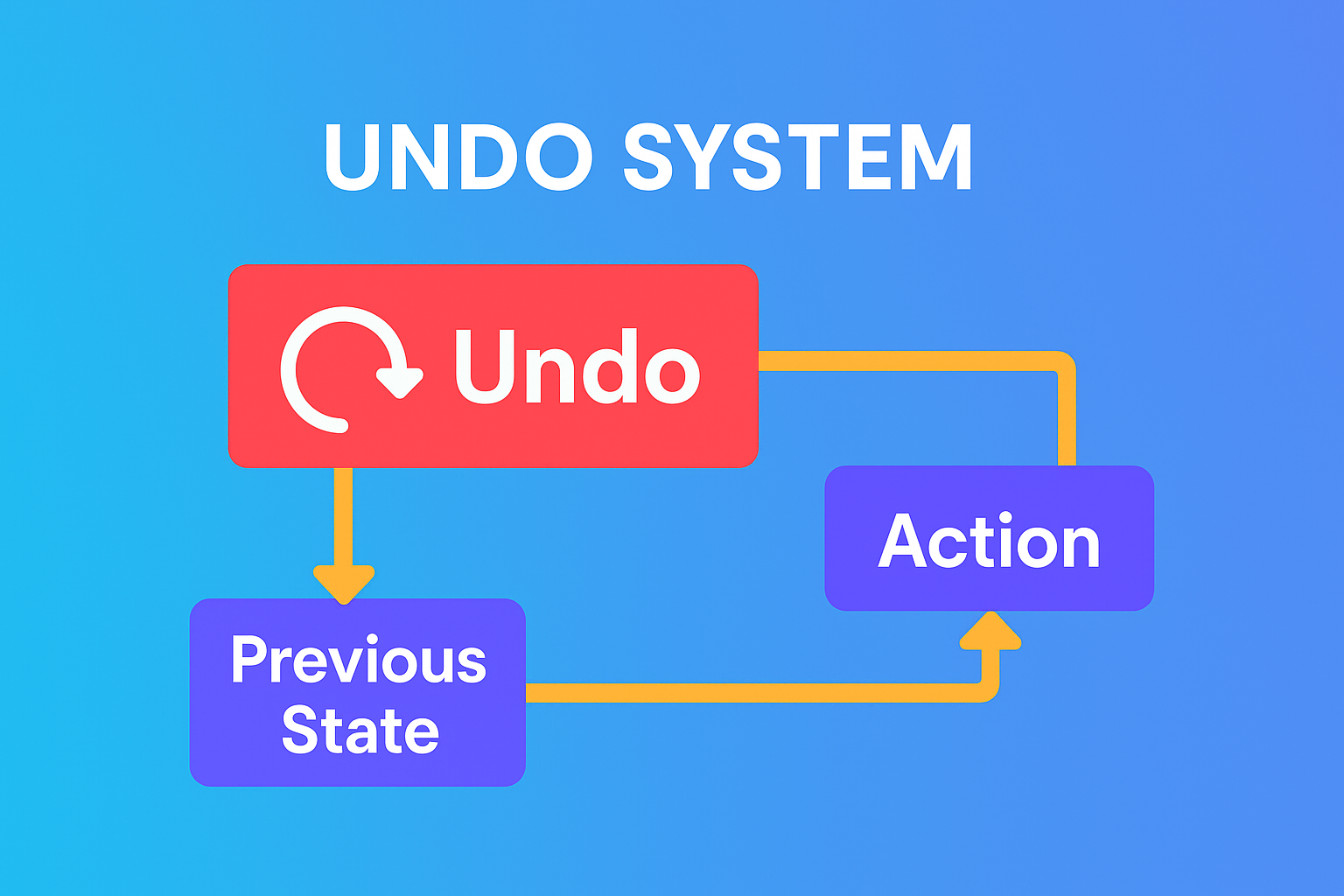
The Undo button feels magical.
You press it… and poof — your mistake disappears. But behind that tiny arrow lies one of the most complex, carefully engineered systems in all of software.
Undo looks simple. Undo is not simple.
🧱 1. Apps Quietly Save a “Before” Version
Whenever you make a change, apps secretly store what your data looked like just before the action.
Examples:
- Before you type a sentence
- Before you crop a photo
- Before you move a file
- Before you delete something
Undo simply restores that “before” snapshot.
This means the app must track every meaningful change — instantly and reliably.
🗂 2. Apps Keep a Whole Stack of Versions
Each time you make a new edit, apps add a new version on top of a “version stack”:
Version 1 → original
Version 2 → after first change
Version 3 → after second change
...
Undo = step back one version.
This is how editors like Google Docs, Notes, Notion, and photo apps maintain clean editing history.
🌒 3. “Shadow Copies” Protect You From Crashes
A shadow copy is a temporary, invisible backup created as you edit.
It protects your work if:
- the app crashes
- the phone freezes
- your internet drops
- you close the app accidentally
Undo and auto-restore both use this hidden copy.
These shadow copies are why your Instagram caption draft or WhatsApp message often reappears after a crash.
🗑 4. Deletes Aren’t Real Deletes (Soft Delete)
When you “delete” something, it usually isn’t removed at all.
Apps typically:
- mark the item as deleted
- move it to Trash / Recently Deleted
- keep it for 30 days
Undo simply undeletes it from this safe zone.
That’s why:
- Photos sit in “Recently Deleted”
- Gmail keeps emails in Trash
- Notes holds deleted items for recovery
Undo becomes trivial — because the data still exists.
🔄 5. What Real Rollbacks Look Like
Some user actions make multiple internal changes. Undo has to reverse all of them together — safely and in the right order.
A. Photo Editing
Applying a filter may update:
- color channels
- brightness
- contrast
- metadata
- preview image
Undo must roll back every adjustment at once.
B. Text Editing
Typing can change:
- the characters
- line breaks
- formatting
These are real, everyday examples of “multi-step rollbacks.”
📦 7. Undo Needs Storage (and Smart Limits)
Behind the scenes, Undo systems store:
- temporary backups
- older versions
- shadow copies
- action history
Apps must choose how to balance speed, memory, and user expectations:
- How many Undo levels are allowed?
- How long should history be stored?
- When should old versions be deleted?
This is why some apps allow unlimited Undo, while others only allow “Undo last action.”
🎯 Final Takeaway
The Undo button depends on an entire hidden ecosystem:
- version snapshots
- shadow copies
- soft deletes
- reversible operations
- conflict resolution
- safe, atomic rollbacks
It’s one of the smartest features in software — engineered to look effortlessly simple.
Undo isn’t just a button. Undo is a system.
Jump into our new LinkedIn thread on — Ever Wondered How Websites Remember You? Cookies vs Local Storage
Also, read our last article: API Rate Limits
Leave a Reply
You must be logged in to post a comment.